
How to register new account on Cloudusk
2 min read
Cloudusk makes it easy for individuals and businesses to get started with cloud hosting, server management, and developer-focused infrastructure. If you’re ready to join the platform, here’s a simple guide to help you get registered with Cloudusk.
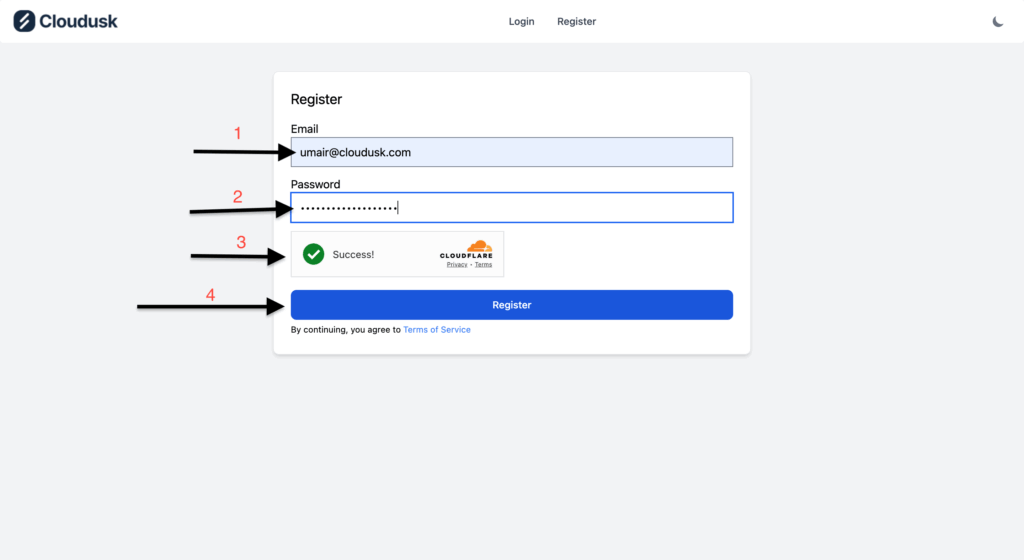
Go to the page Register.
- Enter your Email
- Fill in the password
- Wait for the Cloudflare captcha to load until it shows green checkmark with success text. Verify if it requires you to.
- Hit the register button.
Upon successful details submission, you will be redirected to the Cloudusk’s dashboard. There will be two banners displayed as shown below.
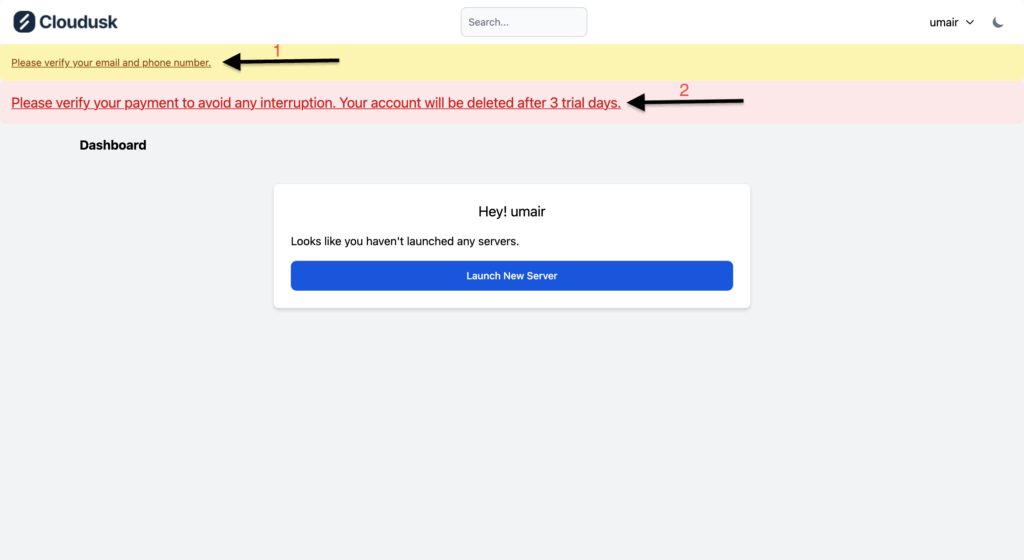
- First one indicating that your email and phone haven’t been verified. Before launching any kind of server, you need to verify both. An email has been already sent to the address you specified. Go to your Inbox and open the message titled “Activate your Cloudusk account”. Click on the “Verify Email” button in the message. Make sure to check Spam folder if the email hasn’t landed in your Inbox. Once you have clicked the button and email has been verified. Following page will be displayed.

- Go back to Dashboard page. The top banner now asks you to verify Phone.

- Click on the banner indicating the requirement of phone verification. On the next screen. Click “Verify Phone” button. Eventually, you will see following page.

- Choose your country by clicking on the flag menu. After your country’s flag and dial code is displayed, enter the phone number in input box.
- Press the send code button.
- Wait for a text message to arrive at your phone. Enter the code upon receiving.
- Once you have entered the verification code, press Verify Code button. If the code is correct, your verification will be complete and page will take you to the dashboard. The top yellow banner will be gone.
You are now ready to create a Trial server under 2gb on Cloudusk to explore our WordPress hosting platform. The banner asking for payment method will be there with a warning that your trial server will be deleted after 3 days if payment details aren’t provided. To provide payment/billing details sees the Add payment/billing article.


