How to launch a new Server at Cloudusk
1 min read
After creating an account and optionally adding payment details, you can create a server while being on Trial period or as a verified paid user. The main page of dashboard looks like this and has a large button saying “Launch new server”. Press the button.

You will be taken to the page listing all server providers and asking details for your website. You are required to enter following details.
- Enter the URL carefully for the WordPress website which you want to host. In the given example, it is cloudusk.com
- Provide a name for uniquely identifying the website. It can be changed later. Here we are naming it as Cloudusk Frontend
- Next you have to choose whether the site is going to be “Single” or “Multisite”. Default is “Single”.
- Choose a server provider as per your budget and location requirement. We are going with Hetzner.

Once you have chosen the server vendor. Choose the location of the server. For each server provider, the available locations are different. In example case, we have chosen Hetzner and going with default “Ashburn” location.

Since a location has been selected, next step is to decided about server size. Every provider has different classes and each class has different server sizes. We have chosen “cpx31”. As a result, default server size with 8GB ram in the given table below is chosen.

At the bottom of the page, there is a bar displaying price of the chosen server which in our case is $32 monthly. There is an option to change payment interval from Monthly to yearly and save 15% on the server price. If you go with yearly payment schedule, the price will be updated in the table as well as bottom bar.

Finally, with all the selections, you have to hit “Launch Server” button.

After a while, a toast message will appear for a short time in the top right corner saying “Server created”. Then you will be redirected to server deployment page which will keep you updated about the deployment progress. Voila! You are done deploying with a fresh WordPress site on the server. Relax and it will take some time while we deploy and configure the server.

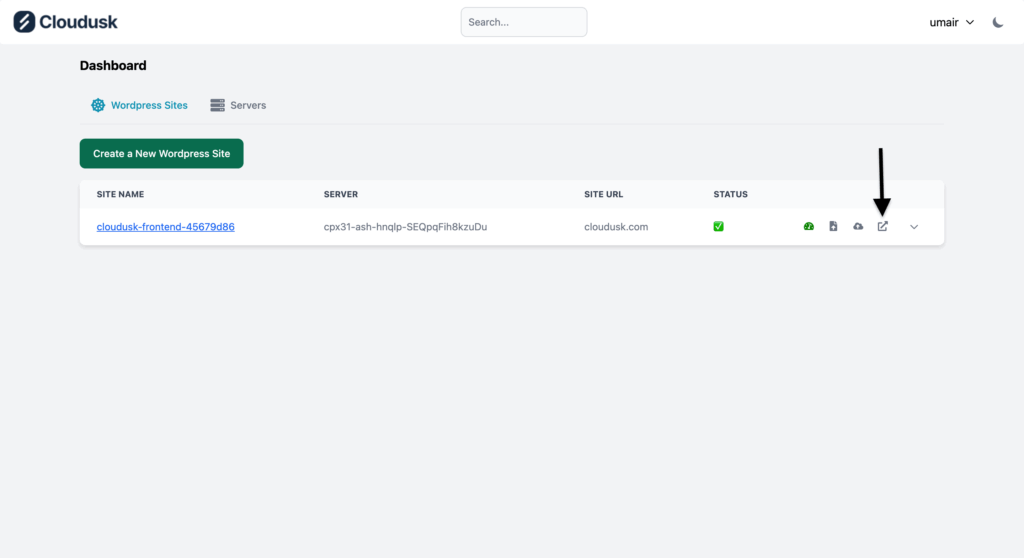
Once all the configuration is done, status will be changed to green checkmark, meaning a fresh WordPress installation is done for the URL specified at the start. You can access the fresh site installation at a vanity URL by clicking the highlighted button in last actions column.