
Enable offsite backups for a WordPress site at Cloudusk
2 min read
Backups are absolutely essential for a WordPress website for several reasons. To avoid data loss, hacking, or error from updates, it is essential to keep backups both in local and offsite locations. Cloudusk offers and integrates both type of backups. Here we are going to discuss offsite backups which only cost 0.02$ per GB.
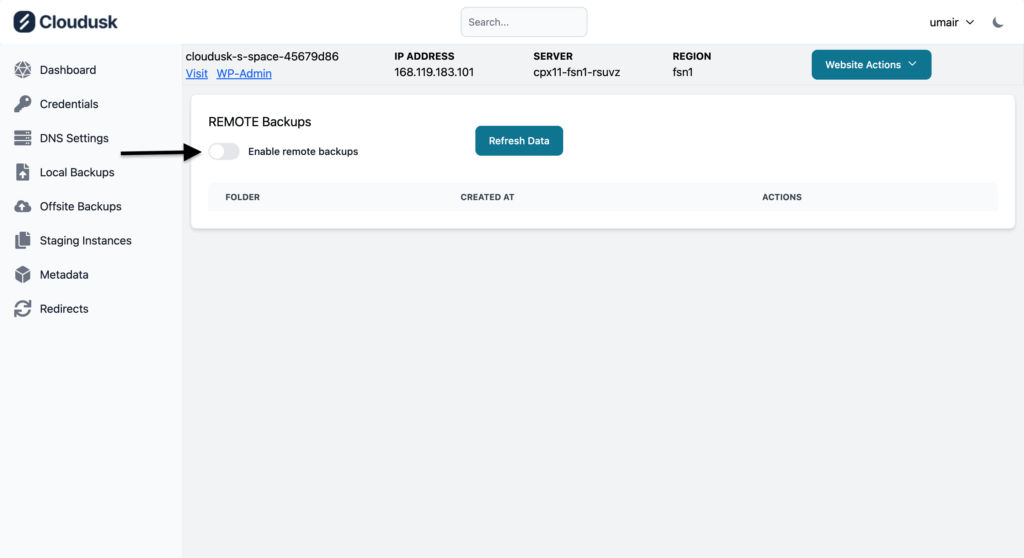
Local backups are stored at the server where WordPress instance is deployed. Go to site details page and then hit Local Backups in side bar. You will be presented with following page where “Enable local backups” toggle is greyed out which means it is disabled. Hit the button and it will present with a confirmation dialog informing that local backups will take disk space. Press “I accept” button and wait for some time.

The page will auto reload and you will be presented something like this once the backup process is done.

Instead of creating one large, backups are divided into five chunks as follows
- THEMES directory
- PLUGINS directory
- UPLOADS directory
- DATABASE
- WP directory
If you are familiar with WordPress, first three chunks are backing up wp-content folder as a whole. New backup/snapshot can be made against any of the three folders by using the drop down displayed at the end of respective folder.
DATABASE section displays the backups of WordPress DB taken at the specific point of time. You can create a new backup of DB by using the drop down in front of DB field and selecting “Create New Snapshot”.
Last section title “WP” is related to core WordPress files. Dealing with it is as dealing with other chunks of a backups.
At any point in time, you can create a full backup for all the chunks by clicking “Create Full Backup” button. By default, the backups are stored for 14 days and new backup point will only be displayed if there a change in the content.


